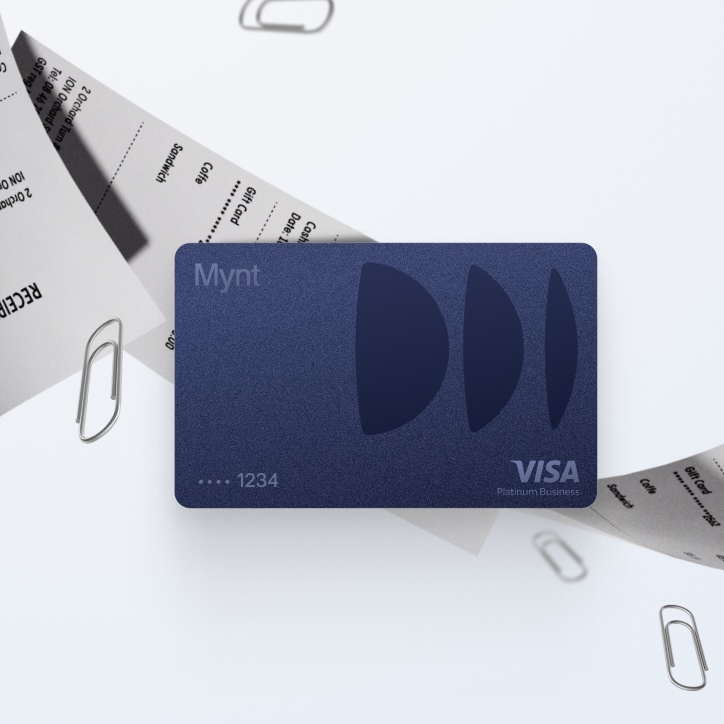


Are you wondering how to get started with Mynt's Auto Receipts feature? In this guide, we'll walk you through how to:
- Set up rules to automatically forward receipts from your email inbox
- Auto-match receipts in Mynt
- Auto Receipts: Digital receipts from physical stores
How to set up rules in your email
Do you have a bunch of advertising receipts in your email inbox? With Auto Receipts, you can set up a rule that automatically forwards these to Mynt. Mynt then matches the right receipt to the right transaction. The rule captures emails that contain the words ‘receipt’ and have an attachment.
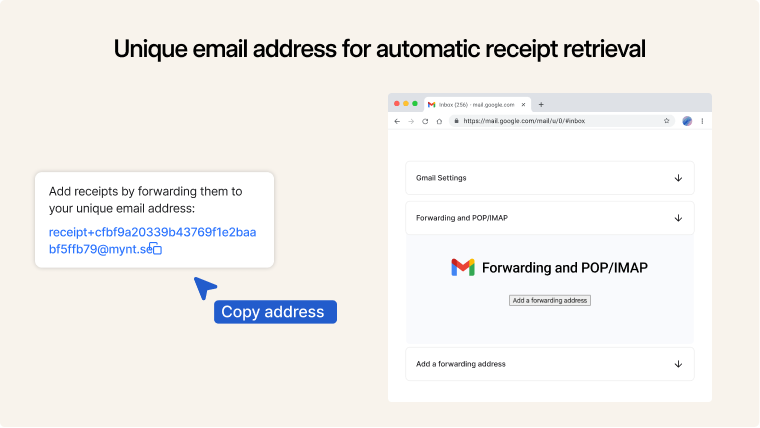
Start by following these steps:
- Log in to Mynt on your computer
- Navigate to ‘My expenses’
- Click on ‘Smart receipts’
- Copy the email address that appears when you hover your mouse over ‘Email receipts’
Gmail
- Go to mail.google.com
- Click on the cogwheel in the right-hand corner and then on ‘Advanced settings’
- Go to the ‘Forwarding and POP/IMAP’ tab and click on ‘Add a forwarding address’ and add the address for Myntkorgen. Wait until the address has been approved, which can take up to 1 minute
- Navigate to the search field at the top of the page and enter (receipt OR kvitto) has:attachment
- Click on the filter button to the right of the search field and then click on ‘Create filter’.
- Tick the ‘Forward it to:’ option and add the address for your Myntkorgen.
- Click on ‘Create filter’ – done!
Outlook (via the web)
- Click on the cogwheel in the right-hand corner and then on ‘Email’.
- Click on ‘Rules’ and then ‘Add new rule’
- Name the rule something descriptive, such as Receipt Rule Mynt
Under ‘Add condition’, add
- Subject or body includes‘ -> ’kvitto‘ and “receipt”
- ’Has attachment‘
- Under ’Add an action‘, add ’Forward to" -> the address for Myntkorgen
- Save the rule – done!
Short answer: To automatically forward receipts to Mynt, create a rule in Gmail or Outlook that searches for emails with ‘kvitto’ or ‘receipt’ and attachments, and choose to forward these to your Myntkorgen address.
Need more instructions? Visit our technical help centre here.
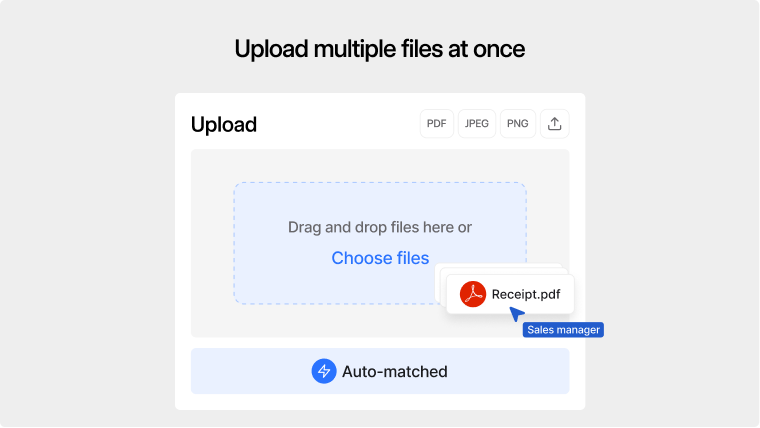
Upload multiple files at once
To upload and auto-match multiple receipts, you can upload them manually in Smart Receipts. Drag and drop the files or images you want to match. Then wait a few minutes and see how your transactions have been completed with the correct receipt.
Tip! Set up notifications for matched receipts
Want to feel extra confident that your receipts have been uploaded and matched correctly? You can easily set up notifications to let you know when a match has been made. You can also choose to receive a notification when a match has failed.
- Go to settings
- Go to the Smart receipts section
- Choose how you want to receive notifications: Push notification or Email
- Turn on the type of notification you want to receive

Digital receipts from physical stores
You can now receive receipts directly on your phone after making a purchase in a physical store or restaurant. The receipts will automatically be sent to Mynt when you shop with your Mynt card. This means that all you need to do is categorise your purchase and then press submit.